This is a new announcement banner that can be turned on and off

Table of Contents

How to build a debt amortization schedule in Excel

Building a debt amortization schedule in Excel is one of the simplest ways to track how a loan balance changes over time. Whether you’re modeling a term loan, checking repayment assumptions, or monitoring outstanding exposure, Excel’s built-in financial functions make it possible to calculate every payment without building the math from scratch. In this guide, you’ll learn how to build a debt amortization schedule in Excel, calculate principal and interest payments using PMT, PPMT, and IPMT, and understand when a manual spreadsheet becomes difficult to manage.

TL;DR

  • A debt amortization schedule shows how each loan payment splits between principal and interest, and how the outstanding balance declines over time until the loan matures.
  • You can build one in Excel using three functions: PMT for the total periodic payment, PPMT for the principal portion, and IPMT for the interest portion.
  • A basic template needs five inputs: loan amount, interest rate, term, payment frequency, and start date. Everything else in the schedule flows from those five numbers.
  • Extra or additional principal payments shorten the loan term and cut total interest, but they also mean every later row in the schedule has to be recalculated by hand, which is where manual spreadsheets start to strain.
  • A single amortization schedule in Excel is manageable. A portfolio of them, especially with amendments and extra payments layered in, is a different problem, and it’s usually the point where teams move from spreadsheets to a platform like Termgrid that keeps every schedule tied to current facility terms. 

What is a debt amortization schedule

A debt amortization schedule is a table that breaks down every payment on a loan into two parts: the portion that goes toward interest, and the portion that reduces the principal balance. It also tracks the remaining balance after each payment, all the way through to the final payment at maturity, when the balance reaches zero.

Amortization is a general finance term for spreading a cost, in this case a debt, over a set period through regular payments. A debt amortization schedule is simply the detailed, period-by-period record of that process.

Most amortizing loans, such as term loans, mortgages, and auto loans, follow the same basic pattern: payments are typically fixed in amount, but the mix inside each payment shifts over time. Early payments are weighted more heavily toward interest because the outstanding balance is largest early on. As the balance shrinks, less of each payment goes to interest and more goes to principal, even though the total payment stays the same.

This structure matters beyond simple bookkeeping. Lenders, borrowers, and portfolio teams use amortization schedules to forecast cash flow, calculate outstanding exposure at any point in time, and confirm that payments are being applied correctly.

How to calculate a debt amortization schedule

Before building anything in Excel, it helps to understand the calculation by hand, since every formula in the spreadsheet is just an automated version of these same steps.

To calculate a debt amortization schedule, you need four inputs:

  • Principal, the original loan amount
  • Interest rate, expressed as an annual rate but applied per payment period
  • Term, the total number of payment periods until maturity
  • Payment frequency, such as monthly, quarterly, or annually

From there, the calculation for each period follows three steps:

  1. Calculate the interest due for the period by multiplying the outstanding balance by the periodic interest rate.
  2. Subtract that interest amount from the total fixed payment to find the principal portion.
  3. Subtract the principal portion from the outstanding balance to get the new balance for the next period.

Repeat this process for every period until the balance reaches zero. For a loan with a long term, doing this by hand for every payment is impractical, which is why Excel formulas exist to automate each step.

Formula to calculate amortization schedule in Excel

Excel does not have a single built-in “amortization schedule” function, but it has three financial functions that together do all the work.

PMT calculates the total fixed payment for each period, combining both principal and interest.

=PMT(rate, nper, pv)
  • rate is the periodic interest rate (annual rate divided by the number of payments per year)
  • nper is the total number of payments over the loan’s life
  • pv is the present value, or original loan amount, entered as a negative number

PPMT calculates the principal portion of a specific payment.

=PPMT(rate, per, nper, pv)
  • per is the specific period number you are calculating (for example, payment 1, 2, or 24)

IPMT calculates the interest portion of that same specific payment.

=IPMT(rate, per, nper, pv)

PPMT and IPMT use the same arguments as PMT, but add per to isolate a single period. In a completed schedule, PPMT plus IPMT for any given row should always equal the PMT value for that row.  If payments are made at the beginning rather than the end of each period, include the optional type argument in the PMT, PPMT and IPMT functions.

Excel also includes CUMIPMT, which calculates cumulative interest over a range of payment periods.

Debt amortization schedule template for Excel

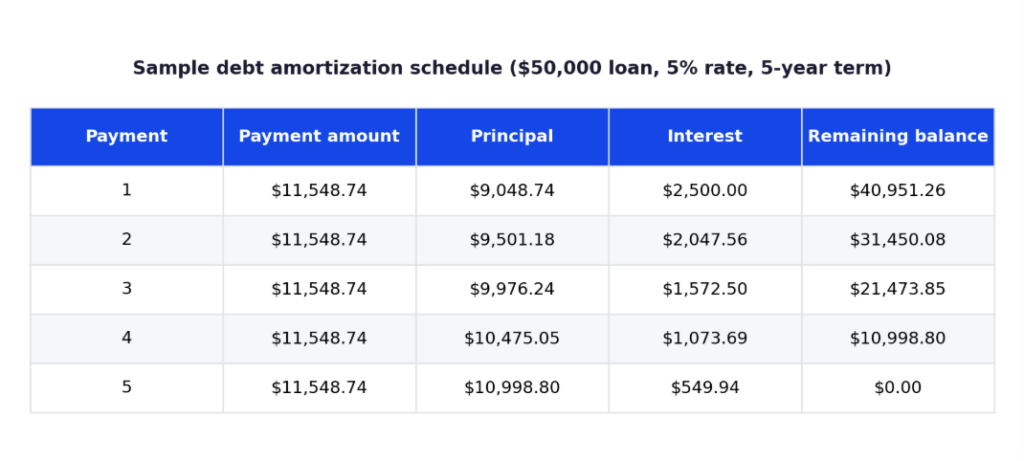
A basic template needs six columns: payment number, payment date, total payment, principal, interest, and remaining balance. The image below shows what a completed schedule looks like for a simple $50,000 loan at a 5% annual rate over a 5-year term with annual payments.

template

Notice how the principal portion of each payment grows every year while the interest portion shrinks, even though the total payment stays flat. This is the core pattern of every amortizing loan, regardless of size or term.

A reusable template should keep the four core inputs (loan amount, rate, term, frequency) in separate, clearly labeled cells at the top of the sheet, rather than typed directly into formulas. That way, updating the loan amount or rate for a new deal only requires changing one cell rather than rewriting every row.

How to create a debt amortization schedule in Excel

Follow these steps to build a working schedule from scratch.

  1. Set up your input cells. In a dedicated section at the top of the sheet, enter the loan amount, annual interest rate, term in years, and payments per year. Reference these cells in every formula below rather than typing the numbers directly into each row.
  2. Calculate the periodic rate and total number of payments. Divide the annual rate by the number of payments per year, and multiply the term in years by the number of payments per year. These two calculated values feed every row of the schedule.
  3. Calculate the fixed payment using PMT. In its own cell, enter the PMT formula referencing your rate and payment count cells. This value stays constant for every row (assuming no extra payments).
  4. Build the row for period 1. Use IPMT to calculate interest on the opening balance, then use PPMT to calculate the principal portion. Subtract the principal portion from the opening balance to get the closing balance for that period.
  5. Copy the formulas down for every remaining period. Each new row’s opening balance should reference the previous row’s closing balance, not the original loan amount. This is the step most manual schedules get wrong when rows are inserted or deleted later, since references can silently break.
  6. Add a running total column (optional). A cumulative interest paid column makes it easy to see total borrowing cost at any point without adding up individual cells.
  7. Confirm the schedule closes to zero. The closing balance in the final period should be zero, or very close to it after rounding. If it isn’t, check that your nper and per values are consistent across all three functions.

A common mistake at this stage is hardcoding the interest rate or loan amount into individual formulas instead of referencing the input cells. This makes the schedule brittle: changing the rate later means editing every row instead of one cell.

How extra payments change your debt amortization schedule

Making an extra, or additional, principal payment reduces the outstanding balance immediately, which lowers the interest charged in every subsequent period. Over the life of the loan, this can meaningfully shorten the term and reduce total interest paid, even from a single extra payment made early on.

The mechanics of adding this to an Excel schedule: create an additional column for extra principal payments, then adjust the closing balance formula for that period to subtract both the scheduled principal and the extra payment. From that row forward, every remaining period needs to be recalculated against the new, lower balance.

This is manageable for a one-time adjustment on a single loan. It becomes considerably harder to manage cleanly when:

  • Extra payments happen more than once across the loan’s life
  • The loan is later amended, changing the rate, term, or payment frequency
  • You are tracking this across several facilities rather than just one

Each of these scenarios means going back through every affected row and confirming the formulas still reference the correct prior balance. In a single spreadsheet, this is tedious but doable. Across a portfolio of loans or facilities, it becomes a real operational risk, since there is no built-in way for Excel to flag that an old schedule no longer reflects the current terms. 

How Termgrid helps manage amortization schedules at scale

Termgrid is a purpose-built deal management and portfolio monitoring platform for private capital markets. Its amortization feature gives teams a dedicated place to maintain a facility’s amortization schedule, rather than rebuilding one in Excel every time a term changes.

For firms managing amortization across more than a handful of facilities, that is the practical difference: rebuilding a schedule by hand every time something changes, versus keeping one in a system built to hold it.

See how Termgrid’s Amortization tracker works or request a demo to walk through it with a member of the team.

Frequently asked questions

1.What is the difference between a loan amortization schedule and a debt amortization schedule?

They describe the same thing. “Loan” refers to the specific type of debt instrument, while “debt” is the broader term that also covers instruments like bonds and credit facilities. The underlying calculation, splitting each payment into principal and interest, is identical regardless of which term is used.

2.Can Excel handle an amortization schedule with variable interest rates?

Yes, but it requires more manual work. Instead of a single rate applied across the whole schedule, each period’s IPMT and PPMT calculations need to reference that period’s specific rate. This is manageable for a handful of rate changes but becomes harder to maintain accurately as changes become more frequent.

3.How do I calculate the total interest paid over the life of a loan in Excel?

Add a running total column that sums the interest portion of every payment, or use the CUMIPMT function, which calculates cumulative interest paid between two specified periods in a single formula.

4.Can I build an amortization schedule without PMT?

Yes, but you’d manually calculate interest and principal every period. PMT automates the payment calculation and is generally the easier approach.

5.Does an amortization schedule change if I make an extra payment?

Yes. An extra principal payment reduces the outstanding balance immediately, which lowers the interest charged on every subsequent payment and can shorten the loan’s remaining term. Every row after the extra payment needs to be recalculated against the new balance.

6.Why does my Excel amortization schedule not reach a zero balance at maturity?

This is usually caused by a mismatch between the nper value used in PMT and the number of periods actually built into the schedule, or a rounding difference from carrying too few decimal places in the payment calculation. Check that the periodic rate, number of payments, and loan amount are consistent across all three functions before troubleshooting further.

End-to-end platform for private debt.

Run deals faster. Track covenants in real time. Strengthen portfolio oversight.

$1tn+
Debt financed on platform
$4.8tn
Client AUM
Stay in Touch

Stay in touch

Stay in touch with all of our latest updates and articles.